A home office can create eye strain in a surprisingly ordinary way: a monitor sits too close, a window reflects across the screen, text is set smaller than comfortable, and concentrated work quietly reduces blinking. The practical distinction is between visual discomfort caused by the work environment and symptoms caused by the eyes themselves: brightness, reflections, tiny text, viewing distance, and missed blinks can often be adjusted, while persistent blur or pain may need an eye examination. A useful guide should also separate screen comfort from sleep concerns, because reducing blue light may affect evening alertness without being the primary fix for daytime eye strain. That is the sensible starting point for learning how to reduce eye strain when working from home.
Key Takeaways
- Place the screen about an arm’s length away, with its top near or slightly below eye level.
- Control reflections, enlarge text, blink deliberately, and use the 20-20-20 rule.
- Persistent pain, double vision, marked redness, flashes, new floaters, or sudden vision changes need prompt professional attention.
Step 1: Find the cause before changing settings
Eye strain is often linked to prolonged near focusing, reduced blinking, glare, poor text sizing, or an uncorrected prescription. A screen setting cannot diagnose or correct an underlying vision problem, so the first task is to separate a fixable workstation problem from a symptom that deserves clinical assessment.
Recognise ordinary visual fatigue
Common screen-related discomfort can include tired or dry-feeling eyes, temporary blur, difficulty refocusing, headaches, and a feeling that the eyes are working harder than usual. Those signs can appear after long periods of concentrated work, especially during video calls or tasks involving small text and several open windows.
Digital eye strain does not mean that the monitor has permanently damaged the eyes. The phrase describes discomfort associated with sustained visual work, but the symptom alone does not identify its cause. A clear prescription, a suitable viewing distance, and a comfortable visual environment still matter.
Separate dryness from a prescription problem
The tear film keeps the eye surface wet and clear. Concentrated screen work commonly reduces the frequency or completeness of blinking, which can leave the surface feeling dry or make vision seem intermittently blurry. Meibomian glands contribute oils that help slow tear evaporation, so a dry, gritty sensation is not necessarily solved by lowering screen brightness.
Contact lenses may add to discomfort for some people, while fans, heating, and air conditioning can make indoor air feel irritating. Frequent, complete blinking and appropriate clinical advice are more useful starting points than assuming a blue-light filter will solve every symptom.
A prescription that needs updating can create blur, headaches, or extra effort during near work. Presbyopia, the age-related reduction in near focusing ability, can also change the distance or text size that feels comfortable. If symptoms persist after a sensible workstation adjustment, arrange an eye examination rather than repeatedly moving the monitor.
Know the warning signs
Persistent eye pain, double vision, marked redness, sudden vision changes, flashes, or new floaters require prompt attention from an eye-care professional rather than continued workstation experimentation. Severe or rapidly changing symptoms should not be explained away as ordinary screen fatigue.
The American Academy of Ophthalmology provides public eye-health information, but an online article cannot examine the eye or establish a prescription. Use symptom duration and severity as reasons to seek care, not as reasons to keep adjusting the monitor.
Step 2: Position the monitor and your body
A monitor should generally sit about an arm’s length from the face, with the top near or slightly below eye level. The correct distance still depends on text size, visual acuity, and posture, so the arm’s-length guideline is a starting point rather than a universal measurement.
Set viewing distance first
Move the display until you can read the usual work text without leaning forward or pulling your chin toward the screen. If a document is hard to read at that distance, enlarge the text instead of bringing the monitor closer. Tiny type creates a poor setup even when the desk itself looks tidy.
Screen distance affects near focusing demand and the tendency to lean into the work. A monitor placed too close can make sustained reading less comfortable, while a monitor placed too far away can encourage squinting or forward head posture. The right position is the one that preserves readable text and a relaxed neck.
Keep the top edge near or below eye level
Positioning the display with its top near or slightly below eye level usually lets the gaze fall gently downward toward the middle of the screen. The arrangement should work with the chair, keyboard, and desk rather than forcing the neck to tilt upward for every line of text.
Home-office ergonomics includes chair height, keyboard position, and neck posture, not only the monitor. A beautiful desk with poor screen placement is like a flat-pack cabinet with a polished door and misaligned hinges: the visible part may look right while the working structure is wrong.
The OSHA Computer Workstations eTool covers workstation arrangement and related ergonomic considerations.
Consider one screen versus two
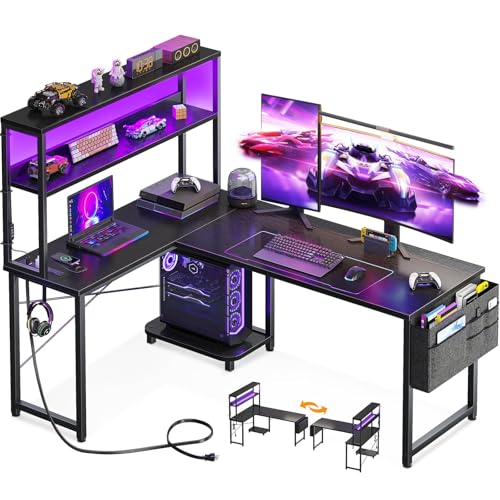
A larger monitor can make text easier to read if the display is configured well, but a larger image does not automatically reduce strain. A second monitor can help when work requires frequent reference material, yet repeated head and eye movement across poorly positioned screens may create a new source of fatigue.
Keep the primary display directly in front of the chair. Place a secondary display close enough that changing documents does not require repeated large turns of the neck, and enlarge the text on both screens so neither becomes a small-print side panel.
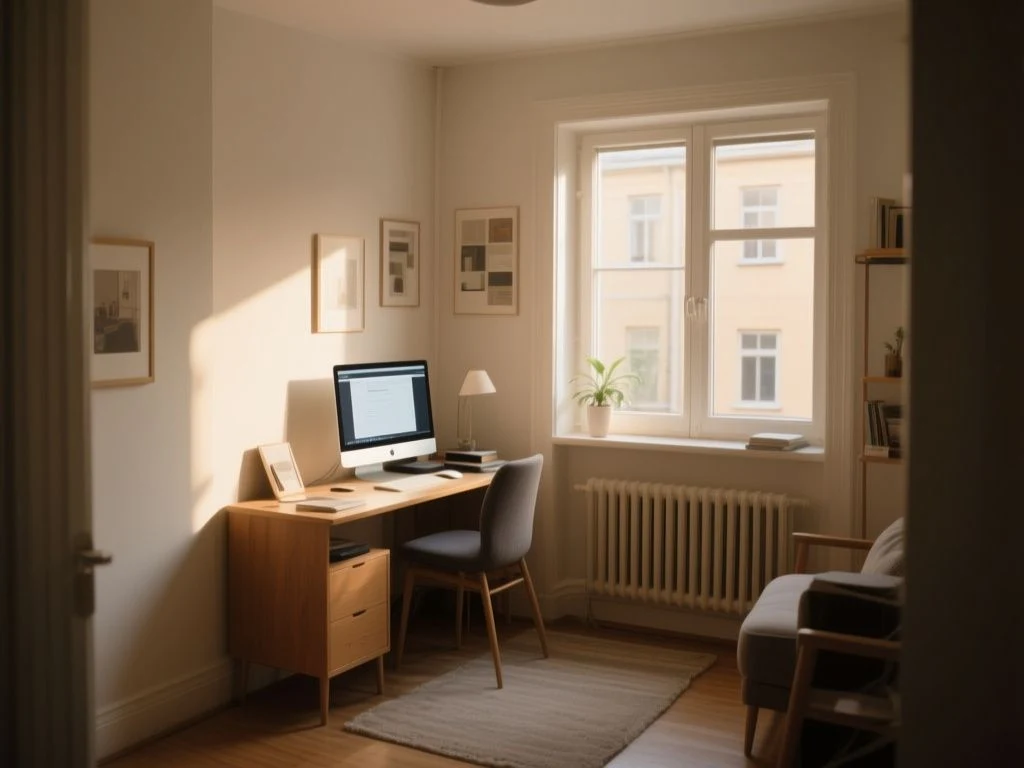
Step 3: Control light, glare, and screen settings
Brightness, reflections, tiny text, and uneven lighting are common environmental causes of visual discomfort. The aim is not to make the screen as dim as possible; the aim is to prevent the display from appearing painfully bright beside a dark room or washed out by a bright window.
Place the desk in relation to windows
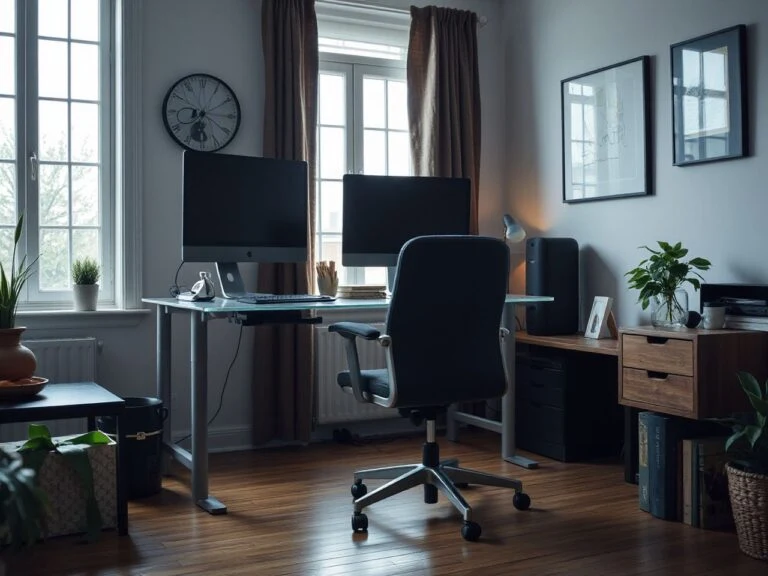
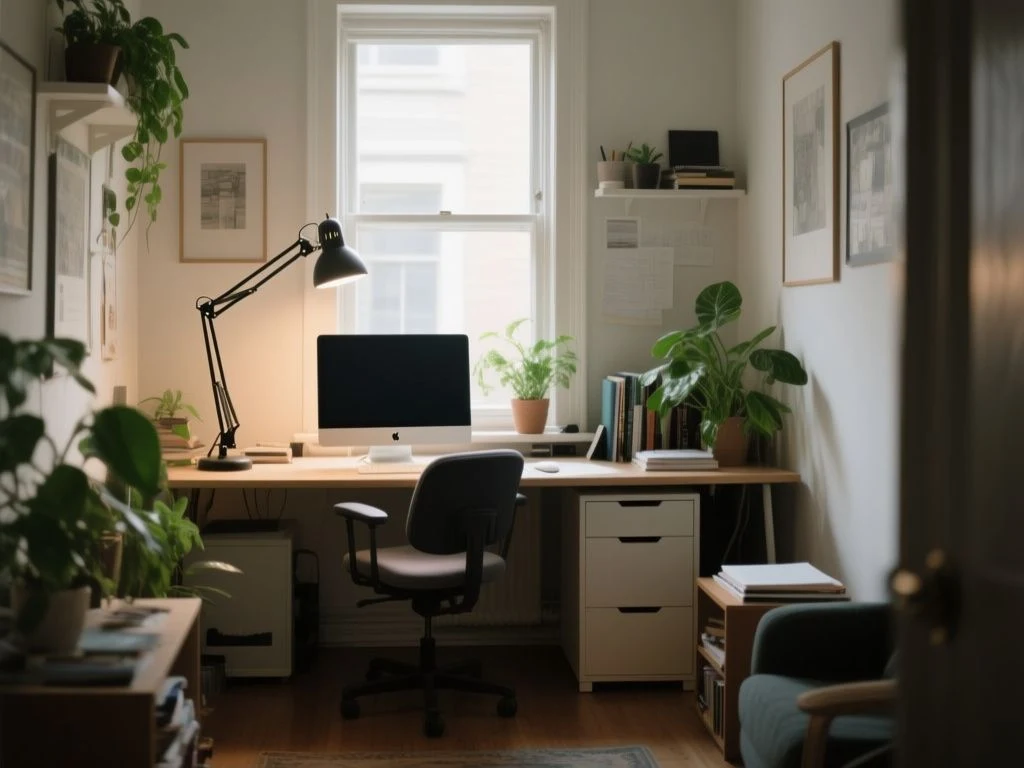
A window directly behind the screen can reflect across the display and make the eyes work through a veil of light. A window directly behind the chair can place bright daylight in the field of view and create contrast between the screen and its surroundings. Turn the desk so daylight reaches the room from the side, then check the display from your normal seated position.
Ceiling lights can reflect from glossy screens, while a lamp aimed at the display can create a bright patch that moves with your head. Use room lighting that illuminates paperwork and the desk without pointing directly at the screen. Close or adjust window coverings when daylight changes enough to create reflections.
Glare control is a visual task, not a styling detail. A screen that looks clear from a standing position can reflect a lamp once you sit down, so judge the setup from the working posture.
Choose brightness, contrast, and text size
Lower brightness can help when the display looks much brighter than the room, but excessive dimming can make text harder to distinguish. Adjust the room and screen together, then read a normal document rather than judging the setting from a colourful image.
Increase text size before moving the screen closer. Use operating-system accessibility controls such as text scaling, contrast, magnification, and reduced motion when they make the work easier to read. Enlarging text is often a more direct response to squinting than switching between decorative display presets.
Dark mode can feel comfortable in a dim room for some tasks, particularly when large areas of white appear glaring. It is not a universal treatment, however. Test dark and light modes with the documents, spreadsheets, and websites used for work, and keep the option that lets you read without squinting or leaning forward.
Clean the display and review the setup
Dust, fingerprints, and smears scatter light and reduce the clarity of text. Clean the screen according to its maker’s care instructions with a suitable soft cloth, and check the surface again whenever reflections or haziness seem worse than expected.
Review the desk whenever the room changes: daylight shifts, furniture moves, a lamp is added, or the work pattern changes from documents to video calls. A setup that suits a bright morning may create glare later in the day.
Step 4: Build breaks and blinking into the workday
The 20-20-20 rule means looking at an object about 20 feet away for 20 seconds every 20 minutes. A distant view gives the eyes a chance to stop holding the same close target, while the pause also interrupts the rigid posture that develops during concentrated work.
Use the break correctly
Look through a window, down a hallway, or across the room during the 20-second pause. Staring at a phone does not provide the same change in viewing demand, even if the phone displays a darker colour mode. Let the eyes shift focus naturally rather than replacing one small bright screen with another.
Set a repeating reminder if work makes the rule easy to forget. The reminder should support a pause, not become another alert that demands a close look. During longer task changes, stand, relax the shoulders, and reset the keyboard and chair position.
The 20-20-20 rule reduces the uninterrupted period of near visual work, but it cannot correct glare, an unsuitable prescription, or a screen positioned badly. Breaks work best as one part of a complete setup.
Blink deliberately during screen work
People often blink less during concentrated reading and video calls, which can allow the tear film to become unstable and contribute to dryness or intermittent blur. Add a few slow, complete blinks when moving between tasks, and avoid staring through a call without looking away.
Video calls place unusual demands on the eyes because the viewer may watch a small face, read chat text, monitor their own image, and glance at several windows at once. Enlarge the relevant content, hide self-view if the software permits it, and look away during natural pauses.
Dryness that continues away from the screen deserves more attention than a display tweak. Contact-lens wearers should follow appropriate professional advice about lens use when discomfort appears, rather than assuming the monitor is the only cause.
Separate daytime comfort from evening sleep concerns
Blue-light filters and warmer screen settings may change the visual character of an evening display and may affect alertness for some people. Those concerns are separate from the main daytime causes of digital eye strain, which include glare, prolonged near focusing, poor text sizing, and reduced blinking.
Blue-light glasses or a blue-light filter are not necessary substitutes for breaks, glare control, adequate text size, or an eye examination. Claims that these filters prevent ordinary digital eye strain deserve caution. Use a warmer setting for evening comfort or sleep-related reasons if it suits you, but do not treat it as the foundation of a daytime eye-care plan.
Step 5: Fix the habits that make strain return
Eye strain can return after breaks if the underlying cause remains in place. The common pattern is a user who follows the 20-20-20 rule but keeps the monitor too close, leaves a window reflected across the display, or reads text small enough to encourage leaning.
Audit the complete workstation
- Monitor: Keep the display about an arm’s length away and place its top near or slightly below eye level.
- Text: Increase scaling or magnification before moving the screen closer.
- Light: Check the display from the seated position for window, lamp, and ceiling-light reflections.
- Posture: Set chair height and keyboard position so the head does not drift toward the screen.
- Air: Redirect fans, heating, and air conditioning away from the face when they worsen irritation.
- Eyes: Blink fully and pause to look into the distance instead of remaining fixed on close text.
The screen is only one part of a home office. A desk arrangement that forces forward head posture can make the eyes feel tired because the entire work position is tense, not because a particular display mode is missing.
Make video calls less visually demanding
Place the call window at a readable size and keep it near the primary viewing area. If notes are needed, enlarge them before the meeting starts rather than switching repeatedly between tiny windows. A face, chat panel, presentation, and self-view can create a crowded visual field even when the monitor brightness is comfortable.
Reduce unnecessary on-screen movement where accessibility controls allow it. Reduced motion, stronger contrast, and magnification can make interfaces easier to follow without requiring the eyes to chase small changing elements.
Use a simple reset sequence
When discomfort appears, stop close work briefly and look across the room. Blink slowly, check for a reflection, enlarge the current text, and confirm that the screen has not drifted closer through repeated leaning. If the symptom remains, record what you feel and arrange professional advice rather than continuing to experiment.
The same rule applies here: a neat visual finish does not prove that the hardware works. The reliable setup is the one whose distance, height, lighting, text size, and breaks support the way the desk is actually used.
For a broader room arrangement, these practical lessons on where rental-room layouts go wrong can help when a desk has to share limited space with windows, lamps, and storage. If paperwork is crowding the work surface, the guide to choosing between open shelving and closed storage offers a useful way to keep visual clutter away from the monitor area.
How to reduce eye strain when working from home: a maintenance plan
Make small checks part of ordinary desk care. Clean the screen when smears or dust become visible, reassess the lighting after furniture or lamp changes, and review text size whenever a new application makes you lean closer.
Have vision checked when blur, headaches, or focusing difficulty persist despite a sensible workstation arrangement. An examination can address prescription needs and eye-surface concerns that screen settings cannot identify.
Remote workers report more intense eye strain than office-based peers in the verified comparison available for this topic, and the home setting can make poor habits easier to repeat unnoticed. A self-managed desk needs deliberate checks because there may be no workplace assessment correcting the setup.
Do not turn a maintenance plan into a reason to delay care. Sudden vision changes, flashes, new floaters, double vision, marked redness, or persistent pain call for prompt professional attention.
Frequently Asked Questions
How far should my monitor be from my eyes?
Start with about an arm’s length between your face and the monitor. Place the top of the display near or slightly below eye level, then adjust for readable text, visual acuity, and relaxed posture. If reading requires leaning forward, enlarge the text before moving the screen closer. There is no single distance that suits every person or every display.
Does the 20-20-20 rule really help eye strain?
The rule interrupts continuous near focusing by directing your gaze to an object about 20 feet away for 20 seconds every 20 minutes. A window or distant point across the room works; another phone does not provide the same change in viewing distance. Breaks cannot correct glare or an outdated prescription, so pair them with a proper workstation setup.
Are blue-light glasses necessary for screen-related eye strain?
Blue-light glasses are not a substitute for adequate text size, glare control, regular breaks, blinking, or an eye examination. Warmer screen settings may suit evening use and sleep-related routines, but daytime discomfort is often connected to near focusing, reflections, and dry eye. Treat blue-light claims cautiously, particularly when they promise to prevent ordinary digital eye strain.
Why do my eyes feel dry or blurry after video calls?
Video calls encourage prolonged staring at faces, small text, chat panels, and self-view, while concentration can reduce blinking. Fans, heating, air conditioning, and contact lenses may add irritation. Enlarge the call content, look away during pauses, blink fully, and seek clinical advice if dryness or blur continues away from screen work or does not improve with these changes.
How can I tell eye strain from a prescription that needs updating?
Temporary tiredness that settles after a break may relate to the work environment, but recurring blur, headaches, difficulty refocusing, or discomfort despite sensible distance and lighting can justify an eye examination. Presbyopia can change near focusing comfort, and screen settings cannot correct an uncorrected prescription. Do not diagnose the cause from symptoms alone.
Can a larger monitor or second monitor make eye strain worse?
A larger display may make text easier to read if scaling and distance are sensible. A second monitor can also help with reference work, but poor placement may increase head movement or leave one screen at an awkward angle. Keep the primary display directly in front of you, position secondary content nearby, and enlarge text on every screen.
How often should I adjust my home-office setup or have my vision checked?
Review the setup whenever the desk, lighting, software, or work tasks change, and clean visible screen smears or dust as needed. Vision checks should be guided by symptoms, professional advice, and your existing eye-care needs rather than by a universal schedule supplied here. Persistent pain, double vision, flashes, new floaters, or sudden changes need prompt assessment.
What should I do for a screen-related headache at home?
Pause close work, look into the distance, blink slowly, and check whether glare, tiny text, or a forward-leaning posture is forcing extra effort. Adjust one factor at a time so the useful change is clear. If headaches recur, remain severe, or accompany vision changes, arrange professional evaluation instead of relying on a home remedy or filter.
Good home-office eye care is mostly careful setup. The monitor should be readable, the room should not fight the display, and breaks should interrupt close work before discomfort becomes the desk’s default setting.