A poorly arranged desk can leave your neck, shoulders, wrists, and back working around the furniture instead of being supported by it. An ergonomic home workspace should be treated as an interacting system rather than a collection of individually comfortable items: changing desk height can alter elbow position, monitor placement, legroom, and lighting.
The practical distinction is between a setup that merely looks aligned in a fixed pose and one that supports movement, task changes, equipment compatibility, and easy readjustment throughout the workday. Every change should be judged by two standards: does it improve the way the space works, and can it come off the wall cleanly?
Key Takeaways
- Adjust the chair and desk together so hips, elbows, feet, and legroom remain compatible.
- Place the monitor, keyboard, mouse, and lighting as one connected arrangement.
- Use separate input devices or a raised display when a laptop forces poor alignment.
- Recheck cables, glare, movement, and equipment fit whenever the work position changes.
Causes: Why a Home Office Setup Starts to Hurt
A fixed posture hides a moving problem
Ergonomics is not a single ideal posture that a person must hold all day. A useful arrangement supports neutral alignment while allowing regular movement and position changes. A chair that feels comfortable for reading may leave the elbows too high for typing, while a desk that suits a seated position may become awkward when raised for standing.
The furniture, body, equipment, and room must therefore be considered together. A task chair affects hip position; hip position affects elbow height; elbow height affects the keyboard and mouse; the keyboard and mouse affect shoulder and wrist placement. One adjustment can create another problem if the rest of the setup stays fixed.
A workspace supports comfort best when its parts can be adjusted without forcing the body into a fixed pose. This principle is especially useful in a rented home, where a layout may need to change without drilling, rewiring, or attaching permanent fittings.
The chair and desk may disagree
Start by sitting in the chair with your feet supported and your back resting in a natural position. Your hips should remain at an angle of 90 to 110 degrees, and your elbows should stay near your torso at roughly 90 degrees while you work.
These positions do not mean that every person should look identical. They provide a check against obvious mismatch. If raising the chair makes your feet hang free, the desk may be too high for that chair and body combination. If lowering the chair causes the knees to crowd the underside of the desk, available legroom may be the limiting factor.
A footrest can help when the chair must remain high enough for the desk but the feet cannot rest comfortably on the floor. The footrest must not block the chair wheels or reduce the space needed to change position. A keyboard tray can also help when the desktop is too high, but only if the tray leaves room for the chair, legs, and any chair adjustment.
Monitor height, viewing distance, and light work together
Place the monitor about an arm’s length away, with your eyes aligned with the top third of the screen. That position is only a starting point because glare and room lighting can change how easily the display can be read.
A monitor moved to avoid a window reflection may end up facing a lamp or a bright wall. A brighter task light may help paperwork but create a reflection on the screen. Monitor height, viewing distance, glare, and lighting should therefore be checked as one arrangement rather than adjusted in isolation.
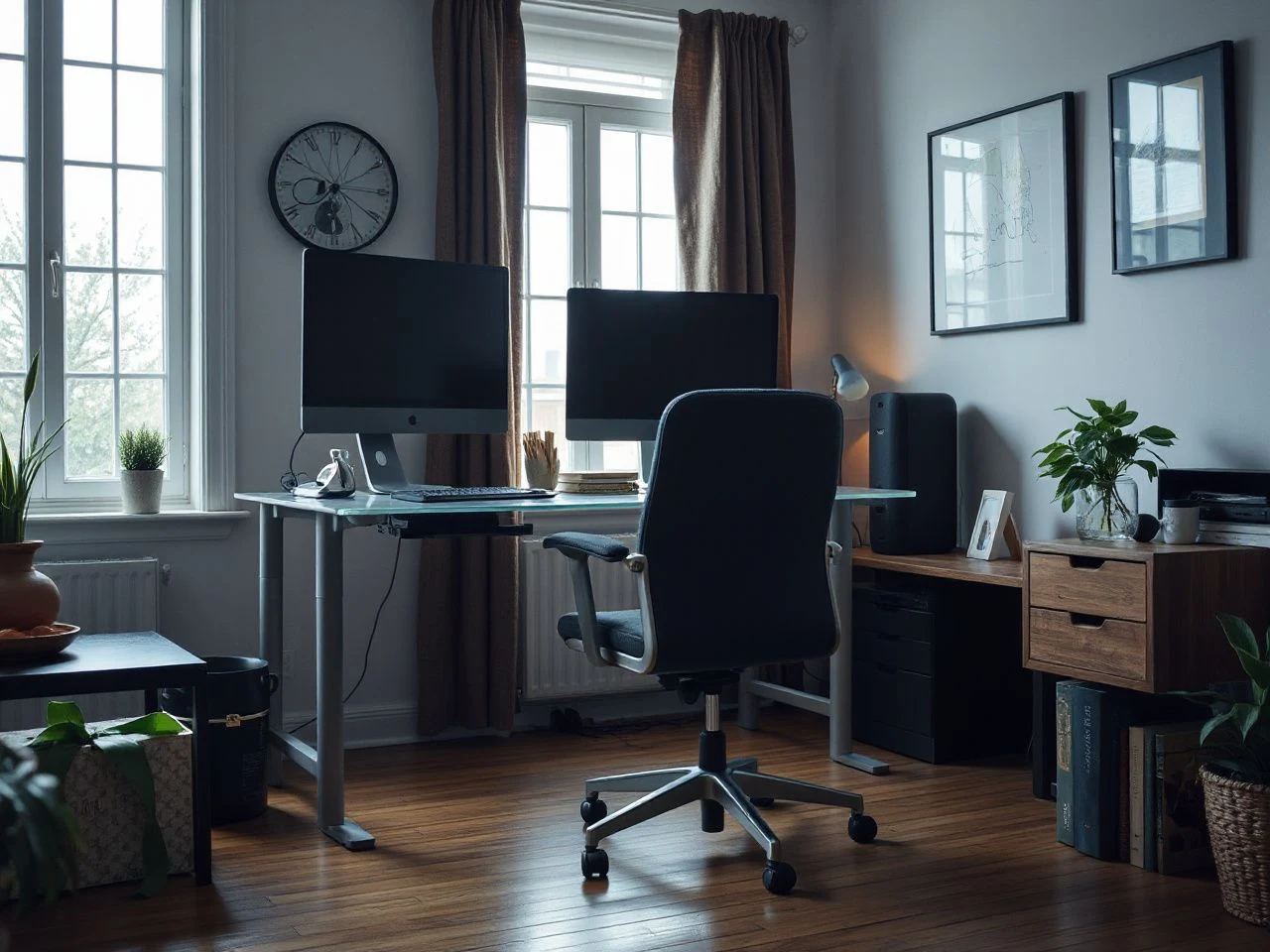
A computer monitor should be positioned with viewing distance, screen height, and glare considered together. Turn off or soften a light source that shines directly into the screen, then reassess the display position instead of raising the monitor automatically.
A monitor arm can be useful when the screen needs frequent repositioning, when the desk surface is crowded, or when different people use the same station. In a rental, a solution that does not require wall holes is preferable. Check how the arm attaches, how much desk space it occupies, and whether its movement could bring the screen into a lamp, shelf, or wall.
Lighting can create a comfort problem
Task lighting should illuminate the papers or objects you are handling without producing a bright reflection on the monitor. Place the light where your hand, screen, or document holder will not cast a distracting shadow across the work area.
Use the room itself as a guide. Sit in the working position, look at the screen, turn to read a document, and notice where your eyes strain or where reflections appear. A renter-friendly setup can use movable lamps, repositioned furniture, and removable cable management rather than fixed wall fittings.
Solutions: Build the Arrangement in the Right Order
Step 1: Clear the legroom before placing equipment
Begin with the underside of the desk. Remove boxes, unused storage, and loose cables from the area where your feet and chair need to move. A clean leg area makes later adjustments easier and reveals whether a desk, chair, keyboard tray, or footrest can actually coexist.
- Roll the chair in and out without catching a cable.
- Place both feet where they can rest without twisting the knees.
- Check that a footrest will not interfere with chair movement.
- Keep power connections from sitting where a foot can pull or snag them.
Clear legroom is a basic part of an ergonomic workstation because blocked space restricts position changes. A beautiful desk can still fail if the chair cannot approach it squarely or if the user must turn sideways to sit down.
Step 2: Set the chair and desk as a pair
Adjust the task chair so the hips sit within the suggested angle and the feet are supported. Then bring the desk into relation with the elbows rather than choosing a desk height by appearance alone.
While typing, keep the elbows near the torso at roughly 90 degrees. The shoulders should not need to lift to reach the keyboard, and the wrists should not have to bend sharply because the input surface is too high or too far away.
A fixed desk can work well when its height suits the chair, body, equipment, and daily tasks. An adjustable desk can be useful when the workspace must support seated and standing positions, but each change requires a fresh check of monitor height, elbow position, cable slack, and legroom.
Compare the two arrangements by asking how easily they can accommodate your actual tasks. Writing, typing, reading, video calls, and handling papers may place different demands on the same surface. The better long-term arrangement is the one that can be reset without making the room difficult to use.
Step 3: Place the keyboard and mouse close to the body
Keep the keyboard near enough that the elbows remain close to the torso. Position the mouse where the shoulder can stay relaxed rather than reaching outward for long periods.
A keyboard tray can be helpful when the desk surface cannot be lowered enough for comfortable elbow placement. It is not automatically a good fit: the tray must leave space for the thighs, chair movement, and any desk support beneath it.
During a task change, move the input devices instead of reaching around a document holder, notebook, or decorative object. The most attractive desk arrangement can become awkward when everyday tools are placed according to symmetry rather than frequency of use.
The keyboard and mouse should work from the same seated position as the monitor, not from a separate arrangement that makes the body reach between them. If the mouse is repeatedly pushed toward the desk edge, the surface may be too crowded or the input area may be too far from the chair.
Step 4: Place the monitor and documents
With the chair, desk, keyboard, and mouse set, move the monitor to about an arm’s length and align your eyes with the top third of the screen. Keep the display where you can read it without leaning forward or turning the head for routine work.
A document holder is useful when you frequently copy from printed pages or handwritten notes. Place the document where the eyes can move between it and the screen without repeated deep bending of the neck. The holder should not block the keyboard, mouse, or task light.
If the monitor arm seems appealing, first confirm that the desk edge can accept its attachment and that the arm will not strike a wall or shelf. Renter-first decorating favours reversible placement, so the arm should be treated as a piece of movable equipment rather than a reason to modify the wall.
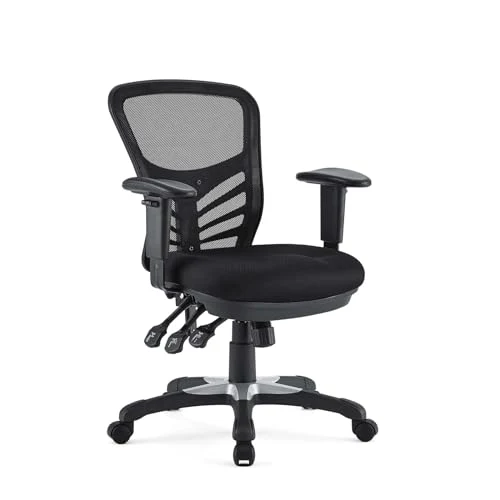
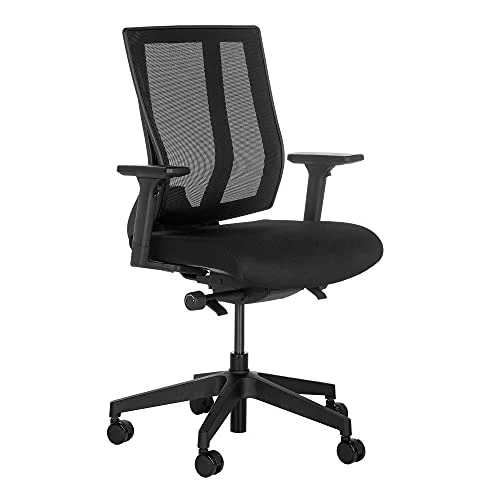
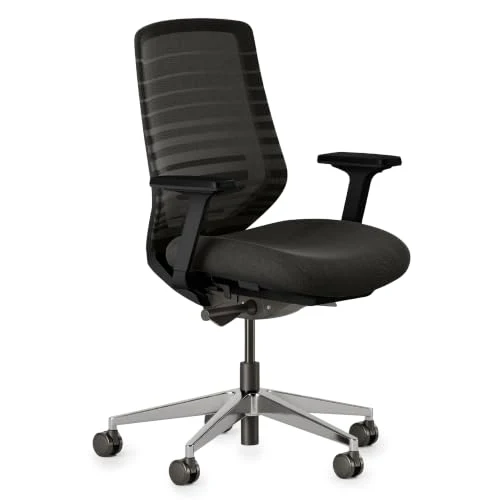
Our guide to choosing a mesh office chair for a home office can help you think through chair features and fit, but the chair still needs to be judged beside the desk, monitor, and available floor space.
Step 5: Rebuild the setup for a laptop
A laptop usually combines a poorly placed screen with a keyboard and pointing device. Raising the screen can improve the viewing position while making the built-in keyboard harder to reach, and bringing the laptop down for typing can force the screen too low.
For extended laptop work, use separate input devices or raise the display so the screen and hands can be placed independently. A laptop docking setup can keep cables organised, but the dock and power connections should remain accessible without crossing the chair path.
A raised display should still be checked against the arm’s-length viewing distance, top-third eye alignment, glare, and task lighting. The separate keyboard and mouse should remain close enough for the elbows to stay near the torso.
A laptop needs separate attention because its screen and keyboard are physically tied together. A compact setup may suit short tasks, while longer work requires a layout that lets the display and input devices occupy better positions.
Preventive Measures: Support Sitting, Standing, and Movement
Make seated and standing positions compatible
Alternating between sitting and standing can make a workspace more adaptable, but standing is not a replacement for movement. The useful goal is to change position without losing the monitor, elbow, and cable arrangement that supports the task.
When a sit-stand desk rises, the monitor may no longer align with the eyes. The keyboard may become too high, the mouse may move out of reach, and cables may pull against the power connection. Lowering the desk can reverse those issues while creating a different problem if the chair or footrest remains in the wrong position.
- Raise or lower the work surface, then check elbow position.
- Recheck the monitor height and viewing distance.
- Confirm that power and display cables have enough slack without drooping into the chair path.
- Move the chair and footrest clear before changing the desk position.
- Use the position that suits the current task rather than forcing one posture for every activity.
A sit-stand arrangement is only useful when the desk movement leaves the monitor, input devices, and cables safe to use. Keep the change simple enough that you will actually make it during the day.
Handle cables, power, and rolling equipment carefully
Cable management is part of comfort and room safety. A loose lead can catch on a rolling chair, pull a device from the desk, or make the easiest chair position unavailable.
Route cables along the rear or underside of the desk where they cannot cross the feet. Use removable clips or ties that can be taken down without marking painted walls, and leave enough movement for desk adjustment without allowing a loop to fall under the chair.
Keep power connections visible enough to inspect. Do not hide a crowded connection behind furniture where it can be pulled during a desk change. For general home product and cord safety information, the U.S. Consumer Product Safety Commission provides public safety guidance.
Rolling chairs need a clear path. A floor mat, cable bundle, footrest, or storage basket can obstruct movement even when each object seems harmless by itself. Check the complete path from sitting to standing, including the route to a nearby shelf or printer.
Watch for pinch and strain points
Adjustable desks and monitor arms introduce moving parts into the room. Keep fingers, cables, and small objects clear of places where a surface or arm moves. Check the full travel path before changing height or screen position.
The same rule applies to keyboard trays. A tray that retracts under the desk may meet the chair, knees, or a drawer. Test the path by moving the chair naturally rather than by checking only the tray when empty.
For workplace ergonomics information and general guidance, consult the U.S. Occupational Safety and Health Administration. Product instructions still govern the specific equipment in your home, so keep manuals available and follow the maker’s stated installation and use directions.
Use a renter-first layout
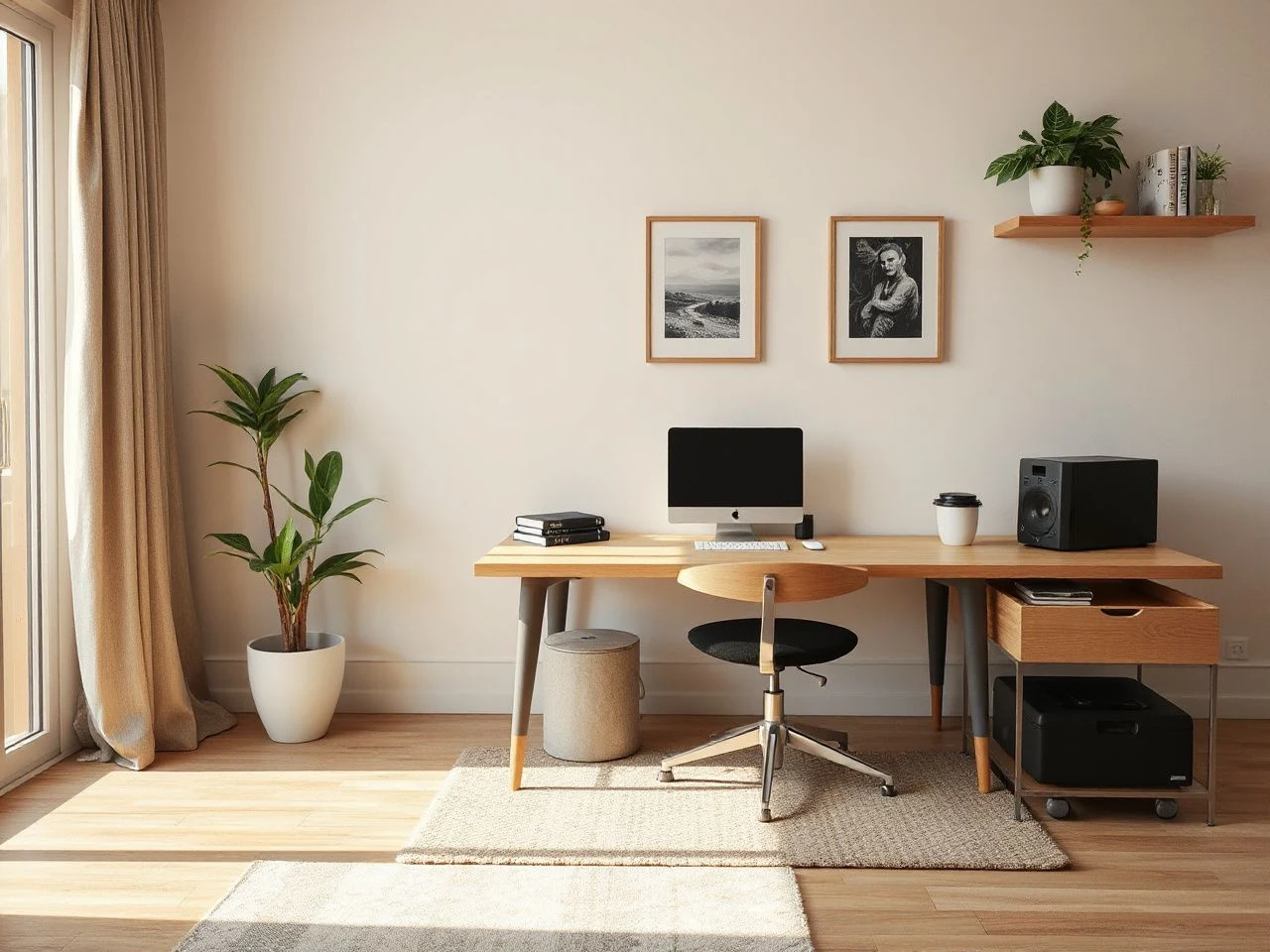
Wall-mounted shelves, fixed monitor arms, and hard-wired lighting can make a room look composed, but they are not the only way to create order. A freestanding monitor arm, movable task light, floor-standing storage, and removable cable clips can provide flexibility without committing the wall to one desk position.
Before attaching anything, inspect the surface and the removal instructions. A sticky pad that comes off cleanly from one painted finish may behave differently on another. Keep the original packaging or instructions for removable fittings, and avoid placing adhesive supports where heat, friction, or repeated movement could loosen them.
Renter-friendly ergonomics depends on reversible placement as much as on body alignment. A setup that works only after permanent changes may be difficult to maintain when furniture, lighting, or the lease changes.
Reassessment: Fix the Reason, Not Only the Symptom
When the neck still feels strained
Check the monitor before adding a cushion or changing the chair again. Confirm the screen is about an arm’s length away, that your eyes meet the top third, and that glare is not making you lean toward the display.
Next, check whether documents are sitting flat on the desk. If you copy from paper often, a document holder may reduce repeated head movement by placing the page closer to the monitor’s visual area. The holder should remain compatible with the keyboard, mouse, and task light.
When the back or hips feel uncomfortable
Review the chair and desk together. Confirm that the hips remain within the 90-to-110-degree range, that the feet have support, and that the knees and thighs have room beneath the desk.
Discomfort can also come from staying still while trying to maintain a textbook-looking posture. Change position, shift between tasks, and make small adjustments rather than searching for one fixed arrangement that will serve every activity.
When wrists or shoulders feel strained
Look at the input devices and elbow position. The elbows should remain near the torso at roughly 90 degrees, while the keyboard and mouse should be close enough that the shoulders do not reach forward.
Check the desk edge, keyboard tray, and chair height as a group. A tray can lower the input surface, but it may also reduce legroom; a higher chair can restore desk access, but it may leave the feet unsupported. The next adjustment should solve the mismatch rather than hide it.
Review replacement and ongoing costs
An ergonomic workspace has ongoing practical demands even without a large redesign. Cables can need replacement, removable fittings can lose their grip, chair components can require attention, and a laptop or monitor change can alter the entire arrangement.
Plan for compatibility rather than assuming every future device will fit the existing layout. A new monitor may need a different arm position; a new desk may change the cable route; a keyboard tray may no longer leave enough legroom. Keeping a little open surface and accessible power makes later changes easier.
Workspace maintenance means checking fit whenever the furniture, computer, lighting, or daily task changes. Reassess after a layout change and whenever discomfort appears, rather than waiting until the room becomes difficult to use.
Use a simple adjustment checklist
- Are the hips within the 90-to-110-degree range?
- Are the elbows near the torso at roughly 90 degrees while typing?
- Are the feet supported without blocking the chair or footrest?
- Is the monitor about an arm’s length away?
- Do the eyes align with the top third of the screen?
- Does task lighting illuminate the work without creating screen glare?
- Can the keyboard and mouse move with the desk or chair arrangement?
- Do cables avoid feet, wheels, pinch points, and moving desk parts?
- Can the setup be changed without damaging the wall?
Run through the list after changing desk height, moving the monitor, adding a lamp, or switching between a desktop and laptop. Small corrections are easier when the arrangement remains visible and the equipment is not buried behind storage.
Frequently Asked Questions
What should I adjust first in an ergonomic home workspace?
Start with legroom, then adjust the task chair and desk together. Set the hips within the 90-to-110-degree range and keep the elbows near the torso at roughly 90 degrees. Once the body and desk agree, position the keyboard, mouse, monitor, documents, and lighting. This order prevents a monitor or keyboard change from hiding a basic chair and desk mismatch.
Is a monitor arm or footrest actually useful in a rented home?
A monitor arm is useful when the display needs frequent repositioning or the desk surface is crowded, provided the attachment suits the desk and does not require unwanted wall changes. A footrest helps when the chair must remain high enough for the desk but the feet lack support. Both accessories must preserve legroom, chair movement, and cable safety.
Why does my neck or shoulder still hurt after I adjust the desk?
Recheck the whole arrangement rather than changing one item repeatedly. Confirm monitor height, arm’s-length viewing distance, glare, task lighting, elbow position, keyboard reach, and the freedom to change posture. A setup can look aligned in one pose yet fail during reading, paperwork, standing, or laptop use. If discomfort persists, seek appropriate professional advice rather than treating furniture changes as a diagnosis.