Home working spaces are shifting from decorative corners to carefully planned task zones. Good home office design separates the visual idea from the working layout: the desk, screen, chair, light, storage, and cable paths must support the tasks performed there before decorative choices are added. The practical distinction is between making a room look like an office and designing clear task zones that control glare, noise, clutter, movement, and adjustment needs. These home office design ideas begin with that distinction.
Key Takeaways
- Choose the office location by checking light, noise, traffic, outlets, ventilation, and available wall or floor space.
- Arrange the desk, chair, screen, and lamp as one working system before adding colour, art, or decorative storage.
- Plan for safe cables, adjustable furniture, clear ventilation, and easy cleaning so the room remains useful after the first setup.
Home office design ideas should start with the working zone
A polished office can still be uncomfortable if the chair, desk, and screen cannot be adjusted to support a neutral working posture. Begin with the work performed there, then decide how much room each task needs. Writing, video calls, extended computer work, printing, and occasional creative work may share one room, but they should not compete for the same small patch of surface.
Choose the location before choosing the look
The right spot is the one that lets the working layout remain clear. A spare room may offer privacy, while a section of a living room may provide better daylight and easier access. A landing, alcove, or dining area can also function well if the desk does not obstruct movement and the equipment can be put away.
- Check household traffic: avoid placing the chair where people must pass close behind it or where a door repeatedly opens into the working area.
- Check noise: keep the desk away from loud appliances, televisions, and the busiest circulation route when possible. Soft furnishings elsewhere in the room can help reduce harsh sound without making the office feel sealed off.
- Check outlets: identify where the computer, lamp, monitor, and other equipment will connect before the desk arrives.
- Check ventilation: computers, lamps, and other heat-producing equipment need clear airflow and should not be enclosed in cramped storage.
- Check the background: a calm wall behind a video-call position can reduce visual distraction, but the camera position should never force the desk into a poor location.
A home office needs clear airflow around heat-producing equipment because cramped enclosures can trap warmth and restrict ventilation. That simple check matters more than matching the office to a particular interior style.
Plan around daylight without putting glare on the screen
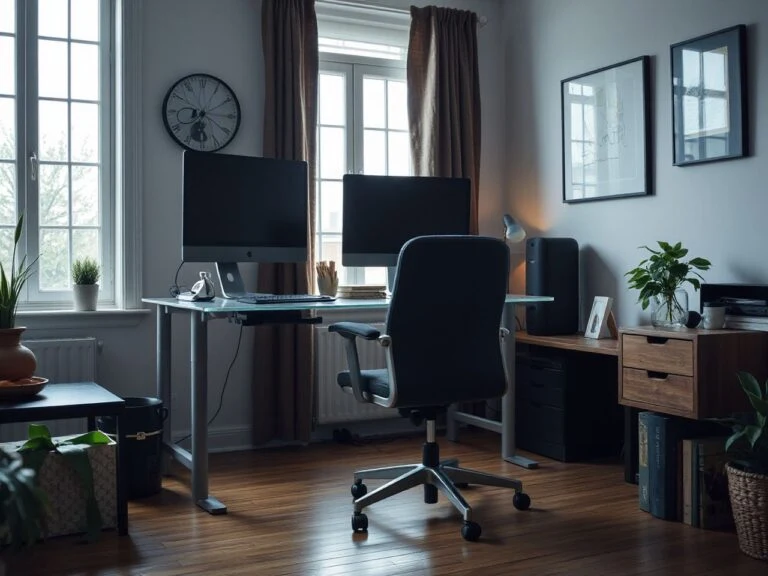
Screen glare depends on the relationship between the monitor, windows, and other light sources, so desk orientation matters as much as the choice of lamp. A window directly behind the screen can create reflections, while a bright window behind the user can make the display look dim and place strong contrast in the camera view.
Test the desk position during the part of the day when the room is normally used. Move a chair and a temporary surface if necessary, then look at the inactive and active screen from the seated position. A curtain, blind, or adjustable shade can soften daylight, but no window treatment will correct every poor desk orientation.
Natural light is useful when it reaches the room without reflecting directly into the monitor. Task lighting should add light to paperwork and the keyboard area rather than shine into the display or the user’s eyes.
Separate decoration from adjustment
Colour, framed art, plants, and personal objects can make a work area feel more connected to the rest of the home. They should not occupy the adjustment space needed by the chair, monitor arm, keyboard, or storage. A calm scheme can support concentration, but visual calm comes mainly from giving every active object a sensible place.
Use a wall, shelf, or cabinet for items that do not need to stay on the desk. Keep the work surface available for the task at hand. The Home Office Space Ideas guide can help develop a calmer visual plan without allowing decoration to dictate the working layout.
Arrange the desk, chair, screen, and light as one system
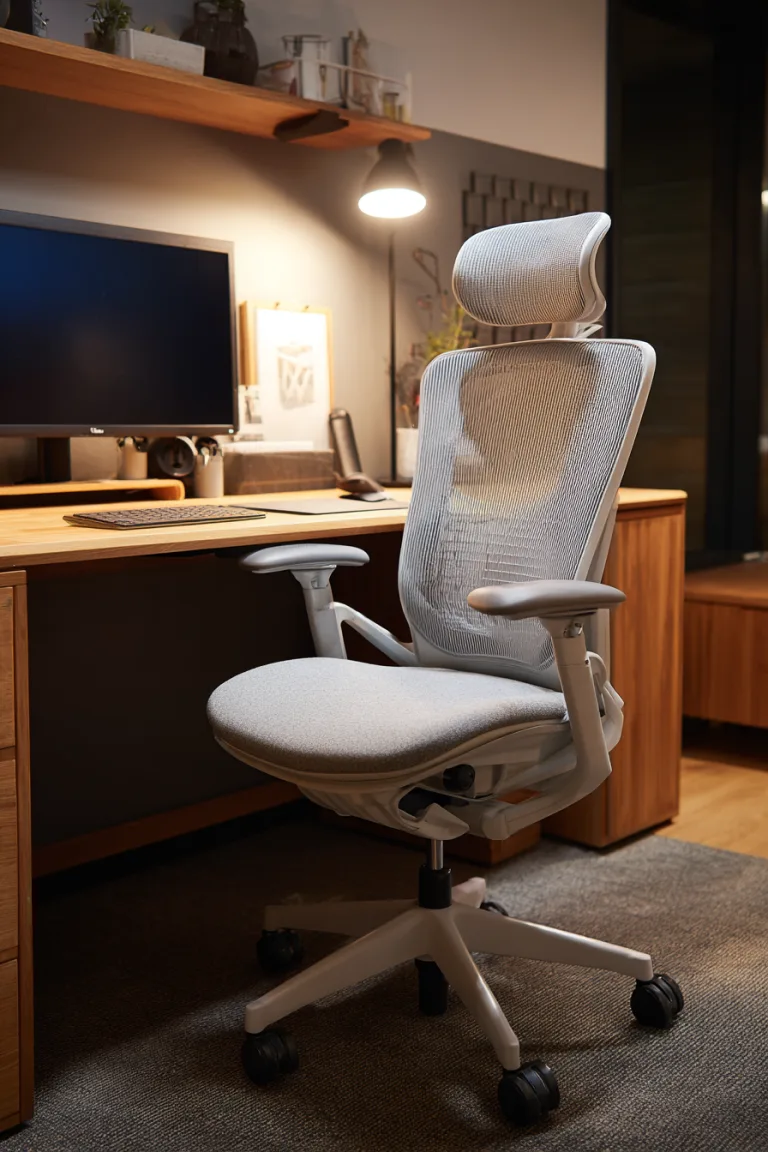
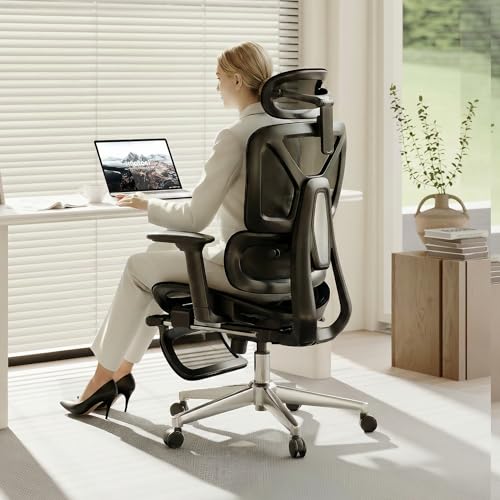
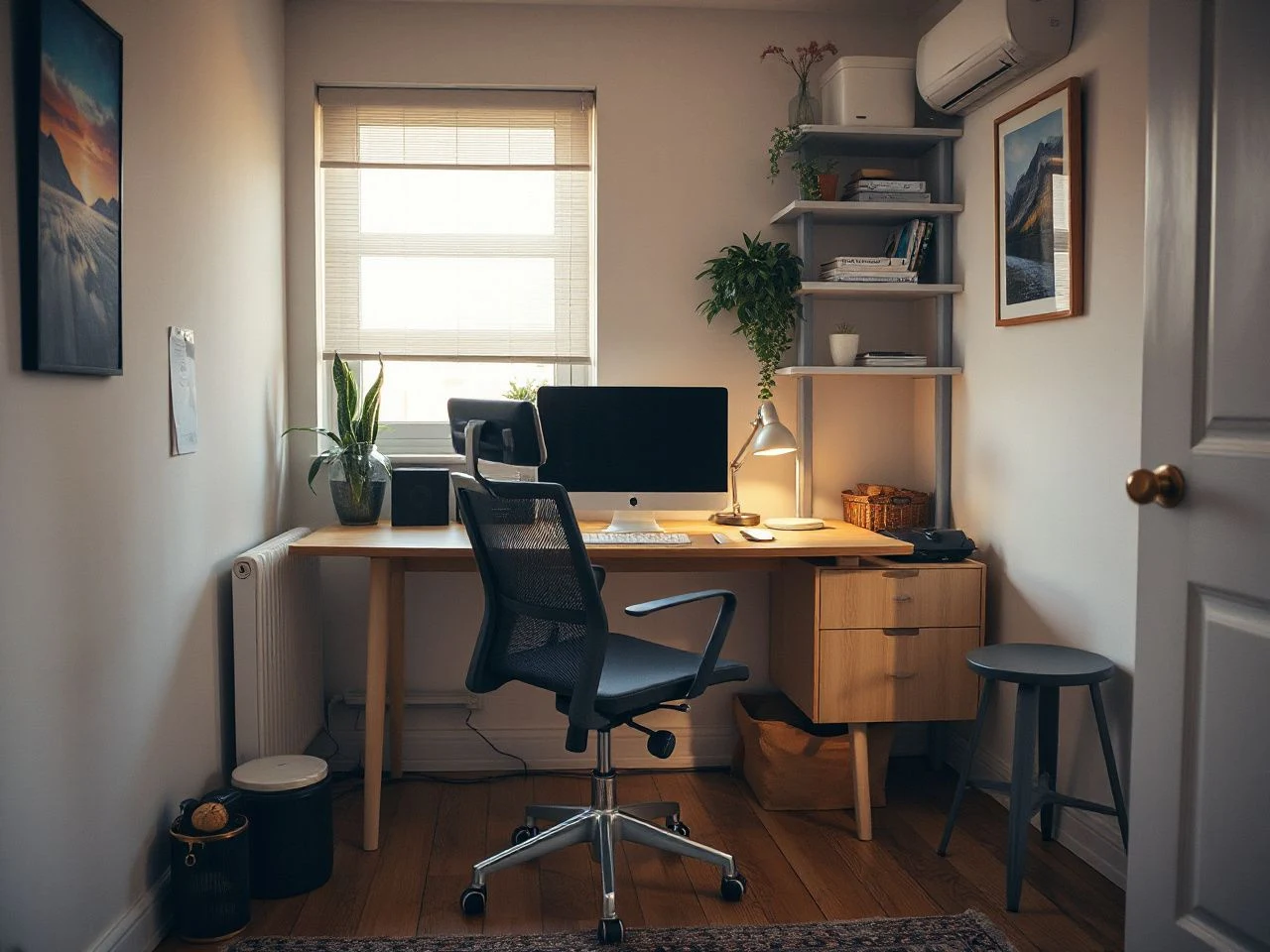
The desk is the anchor, but the chair and screen determine how the body meets the work. An ergonomic office chair should provide adjustable height and lumbar support. A desk may support sitting and standing modes, but that flexibility only helps if the screen, keyboard, and other working items can move with the user.
Set the desk around the main task
Start by identifying the hand movements that happen most often. Computer work needs a clear area for the keyboard and mouse. Writing needs a usable handwriting surface. Reference material needs a nearby location that does not cover the main work area.
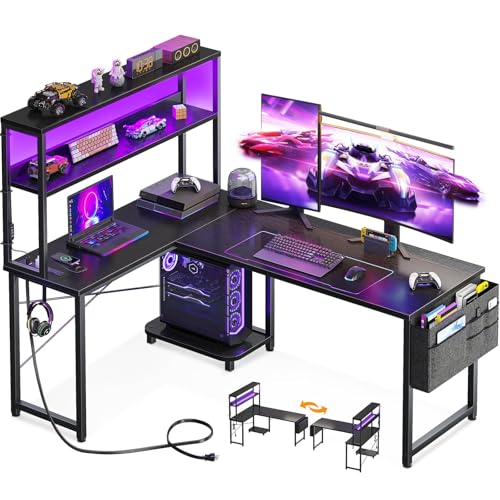
Common computer desks may include cable-management holes and a monitor platform, while a keyboard tray can preserve surface area for handwriting. These features are useful only when their positions suit the person using the desk. A tray that forces the shoulders forward or a monitor platform that leaves the screen at a poor height works against the rest of the arrangement.
A work desk should leave enough clear surface for the primary task before decorative objects are placed on it. That principle applies in a large office and in a very small office.
Place the chair for movement, not just appearance
Leave a clear route for the chair to move in and out. A chair squeezed between a desk and a wall may look tidy but can make entry awkward and encourage twisting. In a shared room, position the desk so the chair does not occupy the main walkway when someone is working.
Adjustable height matters because the relationship between the seat, desk, keyboard, and screen changes with the user and the task. Lumbar support matters because the backrest should support the seated posture rather than forcing the body to lean away from the desk. The chair should be judged by the working position it permits, not by its visual resemblance to office furniture.
Decide whether a separate monitor earns its space
A laptop can support a compact office, but its screen and keyboard are joined together. A separate computer monitor allows the display position and input position to be arranged independently. That can make a difference in a small room where the desk must serve several purposes, although the extra screen also needs a stable location, power, and a plan for storage when the desk changes function.
Use a monitor platform or monitor arm only after checking the screen position from the seated working posture. The screen should not force the head to turn repeatedly for ordinary tasks. A separate monitor is useful when independent screen and keyboard placement solves a real layout problem; it is unnecessary when it creates more clutter than it removes.
Use task lighting to support the work surface
Task lighting belongs beside the activity it serves. A lamp aimed across a notebook can cast a hand shadow, while a light aimed toward the screen can create reflections. Place the lamp where it lights paper or the keyboard area without becoming a bright object in the monitor’s reflection.
Light sources should be considered together. A bright window, ceiling fixture, and desk lamp can create competing reflections even when each source seems acceptable on its own. Dim or redirect one source at a time and watch the screen from the normal chair position.
Make small and shared offices work without visual overload
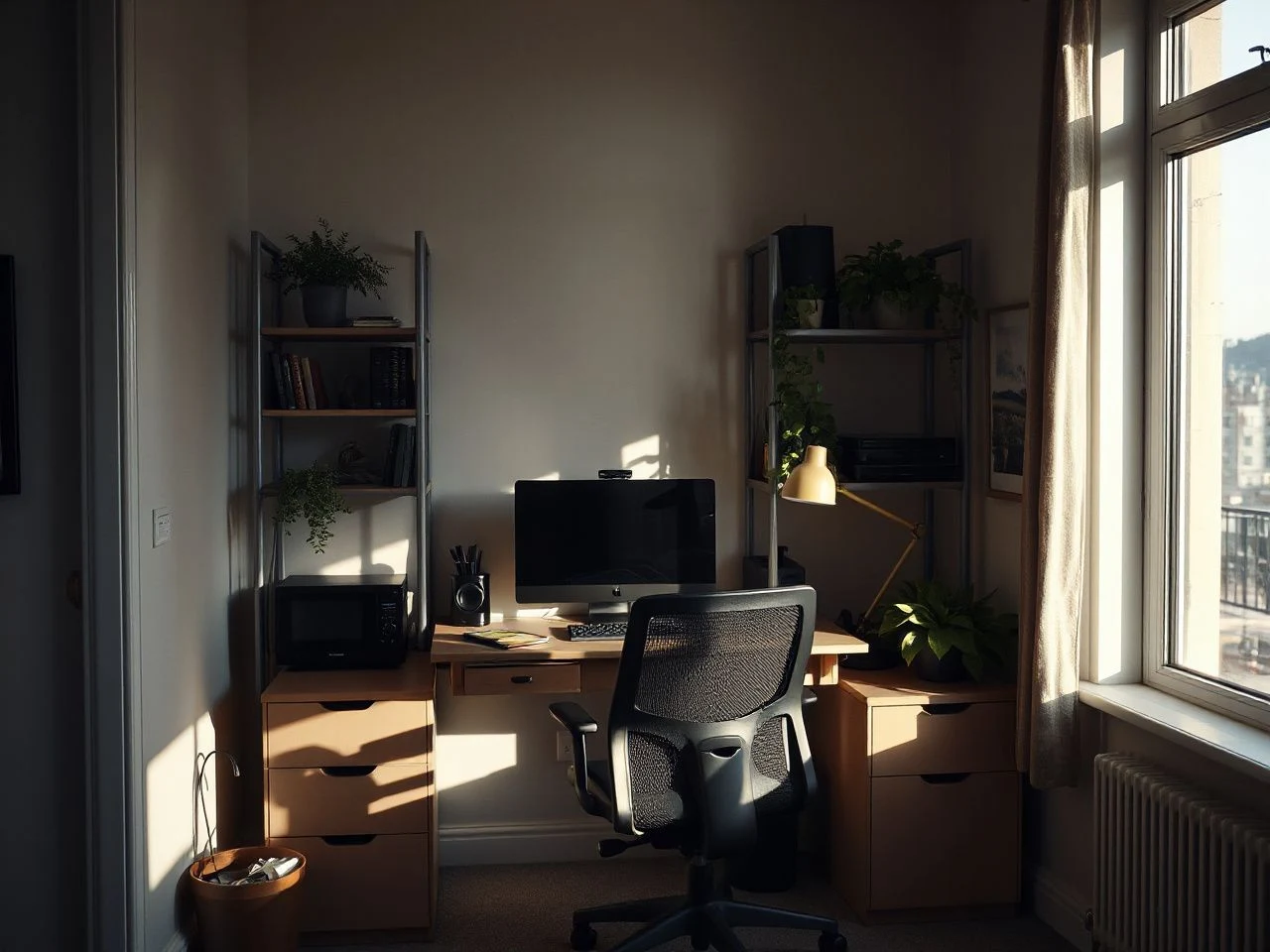
Small-space organization works best when one area can change function without requiring a full rearrangement. A narrow desk can serve as a writing surface and computer station, while an armoire desk can hold a keyboard, monitor, mouse, speakers, and printer behind a closing front. The important question is not how many objects fit inside; it is whether the working setup can be opened, used, and cleared without blocking movement.
Use vertical space carefully
Wall storage can preserve floor area, but every attachment needs a removal plan. Check the wall surface, the mounting hardware, the position of hidden services, and the load described by the manufacturer before attaching storage. A shelf above a monitor should not cast a distracting shadow or make the screen feel enclosed.
Desk companies may use a rear modesty panel to mount peripheral hardware such as cable management and outlet strips. That location can keep equipment off the main work surface, but the panel must remain accessible for inspection and cleaning. Do not hide connections where a fault or loose plug would be difficult to notice.
Wall-mounted storage should remain shallow enough to preserve the movement needed by the chair and the user’s arms. A small office feels larger when the central floor route stays clear, not simply because more objects have been moved upward.
Design a shared office around changeover
Shared rooms need visible boundaries. A desk mat, lamp position, closed storage section, or movable screen can mark the office zone without making the room feel divided. Each user should know where the active equipment goes and where it is stored after work.
Choose furniture that can support more than one posture or activity when space is tight. A desk that operates in sitting and standing modes can serve changing tasks, provided the monitor, keyboard, and cables have enough slack to move safely. Flexible furniture is valuable only when its adjustment path is clear.
A shared home office works better when the end-of-day reset takes a few deliberate movements rather than a complete clear-out. Keep frequently used items within reach, while storing occasional equipment in a defined cabinet, drawer, or box.
Use visual restraint without making the room dull
Minimalism does not mean removing everything personal. It means separating active tools from background objects. Pick a small group of meaningful decorative pieces and leave the rest in storage. Colour, texture, and art can remain expressive when the desk surface, screen area, and floor route stay readable.
Personal style can come through in the wall colour, textile choice, framed work, or shape of the storage. The office does not need a stereotypical masculine or feminine scheme. A useful room is defined by its task zones, not by a narrow design label.
Control cables, equipment, sound, and ongoing upkeep
A tidy office is easier to maintain when cable paths are decided before devices are connected. Draw the route from the desk to the outlet, then separate cables that need to move with the monitor or laptop from cables that can remain fixed. A cable management tray can keep fixed leads below the work surface, while a modesty panel may provide a mounting point for peripheral hardware.
Keep power paths visible and safe
Power strips and extension cords should not be overloaded, covered by rugs, or routed where they create a trip hazard. The U.S. Consumer Product Safety Commission provides consumer safety information about electrical products and household hazards, so its guidance is a useful reference before reorganising a crowded power area.
Do not bundle every cable tightly into one hidden mass. Leave connections reachable and label them by device if several similar leads are present. A cable tray is helpful when it supports inspection and cleaning; it is unhelpful when it merely conceals a tangled set of connections.
Power strips and extension cords need clear routing because a hidden trip hazard remains a trip hazard. Keep cords away from chair wheels, doorways, rugs, and locations where they can be pinched.
Check a monitor arm before attaching it
A monitor arm must be compatible with the desk edge, mounting hardware, and monitor attachment pattern before installation. Check the arm instructions and the monitor’s mounting information rather than assuming that a clamp or plate will fit every desk and display.
Inspect the desk edge for thickness, shape, damage, and nearby cable holes. A clamp needs a stable contact area, and a grommet mount needs a suitable opening and clear access below the surface. Keep the arm’s movement within the desk area so the display cannot strike a wall, shelf, or window.
ASTM International develops voluntary consensus standards for products and practices; its standards information can provide general background when a furniture or hardware document refers to an external standard. Follow the specific installation instructions supplied with the arm and monitor.
Make cleaning part of the layout
Dust gathers where cables meet the floor, where equipment sits against a wall, and where storage blocks access. Leave enough room to wipe around the monitor, lamp, power strip, and desk legs. A visually clean office should also allow the user to see loose connections, accumulated dust, and damaged cable coverings.
Store printers, speakers, and other occasional equipment where their cables can be reached without moving the entire desk. An armoire desk can contain several computer accessories, but closed storage should not become a cramped enclosure for equipment that produces heat. Keep ventilation openings clear and avoid packing active devices tightly together.
Reduce noise without closing the room in
Start by controlling the source. Move the desk away from household traffic, close a door only when needed, and use soft furnishings to reduce hard reflections. Curtains, rugs, upholstered furniture, and books can help the room feel less stark while preserving an open visual connection with the rest of the home.
Acoustic treatment should support the room’s purpose rather than turn it into a sealed booth. A shared office may need a clear signal that a call is in progress, such as a light or desk position, while still allowing normal movement around it.
A quieter home office depends first on source control and room arrangement, not on covering every wall. The office should remain ventilated and accessible after sound-softening changes are made.
Account for the running cost without inventing a budget
An office has ongoing costs beyond the initial furniture arrangement. Electricity use comes from the computer, monitor, lamp, printer, and other equipment. Lighting may need replacement, and furniture or cables may eventually need repair or replacement. The amount depends on the equipment, operating habits, and local energy rates.
Track which devices remain powered when the office is not in use. Turn off equipment according to its instructions, keep lamps easy to reach, and avoid adding devices that duplicate a task already handled by existing equipment. A simple layout can reduce unnecessary additions and make the office easier to reset.
Prevent the common layout failures
The most attractive office photographs often hide the practical checks that determine comfort. Use a short review before finalising the room, then repeat it after the space has been used for normal work.
Failure: the screen faces a bright source
Reflections make the display harder to read and encourage awkward head or body positions. Test the screen from the real chair, not from the doorway. Change the desk orientation first, then adjust window coverings and task lighting.
Failure: the chair blocks movement
A chair that sits in a passage becomes a daily obstruction. Mark the chair’s working and pushed-in positions, then check doors, drawers, and walking routes. If the route fails, change the desk position or choose a layout that lets the chair sit within the office zone.
Failure: storage is attractive but unreachable
Storage that requires standing, turning, or moving equipment for every small item will not support a busy workday. Put active supplies near the desk and occasional supplies farther away. Keep the work surface clear enough to distinguish current tasks from stored objects.
Failure: a laptop is used in a fixed posture
A laptop combines screen and keyboard placement, which can make the working position difficult to adjust. Raise or relocate the screen only if the keyboard and pointing device can remain comfortable at the same time. A separate monitor can help when independent placement solves the problem, but it should not be added without a clear storage and cable plan.
Failure: decoration hides the wall and desk condition
Art and accessories can conceal loose hardware, dust, blocked vents, and damaged surfaces. Keep the area around attachments visible enough for inspection. Before mounting storage or a monitor arm, confirm that removal will not leave a problem that the decoration merely covers.
For a wider review of clutter, storage, and reset habits, use these Home Office Organization Tips alongside the physical layout checks above. If the room is especially compact, the guide on making a small home office feel bigger offers further ways to preserve visual breathing room.
Frequently Asked Questions
How do I choose the right spot for a home office?
Choose a location that supports the desk, chair, screen, lighting, storage, and cable route without blocking household movement. Check daylight, glare, noise, ventilation, outlets, and the chair’s clearance before committing. The most attractive wall is not automatically the most useful location. Mark the intended footprint temporarily and sit there during the normal working period to inspect the screen and surrounding traffic.
Is a separate monitor better than working only from a laptop?
A separate monitor is useful when the screen needs to move independently from the keyboard, especially if the laptop position creates an awkward working posture. It also requires extra space, power, cable routing, and a storage plan in a shared room. Keep the laptop setup if it already supports the task comfortably. Add a monitor only when it solves a specific layout problem.
What should I check before mounting a monitor arm or storage?
Check the desk edge, mounting hardware, monitor attachment pattern, surface condition, and access beneath the desk. Confirm that the arm or storage can move without striking a wall, shelf, or window. Read the manufacturer’s installation instructions before drilling or clamping. A mount should remain inspectable after installation, with cables reachable and the supporting surface free from damage.
How can I keep a small office tidy and safe?
Give active tools a defined work zone and store occasional equipment away from the main surface. Route cables along safe paths, keep power strips visible and uncovered, and avoid placing cords where chairs or feet can catch them. Leave airflow around computers and lamps, then make cleaning part of the routine. The budget decorating ideas guide can also help prevent decorative additions from creating unnecessary clutter.